User Management
Use the Users page to manage access to the Cyberhaven Console. Navigate to Settings -> Users to view all accounts.
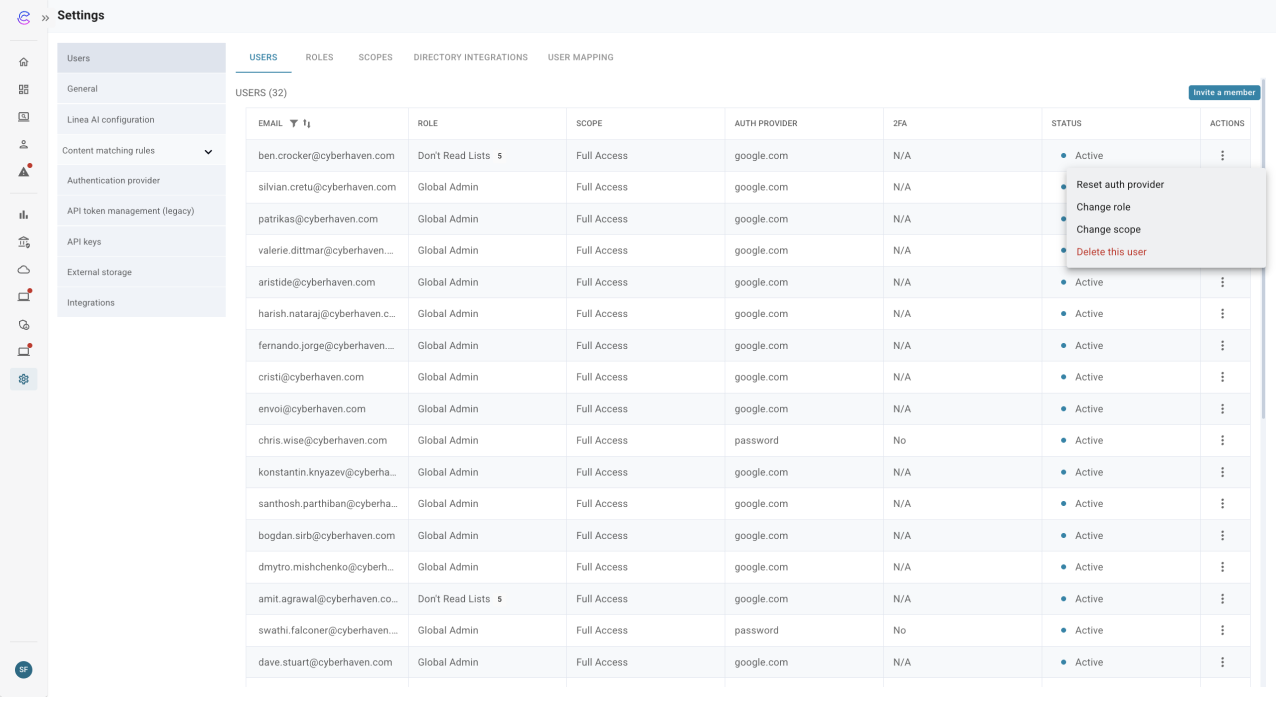
The Users table shows each user’s role, access privileges, authentication provider, multifactor authentication (MFA) status, and overall status. Users who have accepted their invitation appear as Active. Invited users who have not yet accepted appear as Invite Pending.
Add a user
To invite a user to the Console:
Click Invite a Member.
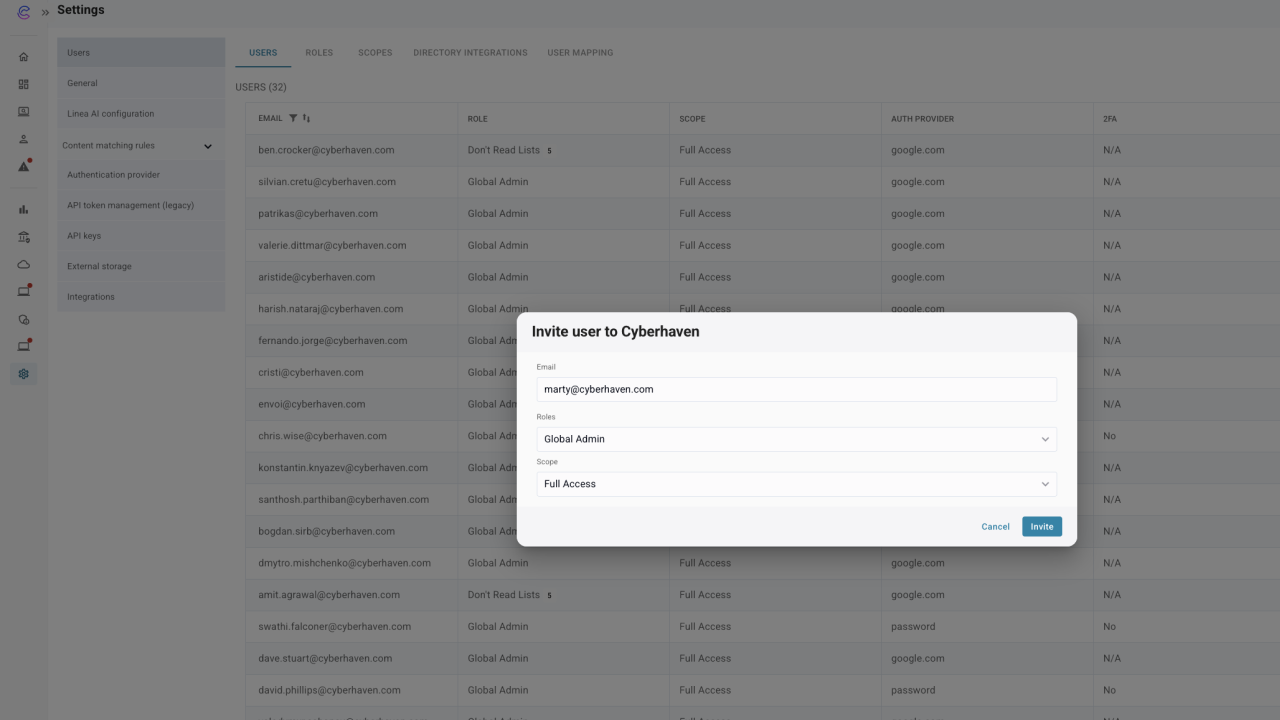
In the Invite user to Cyberhaven dialog, enter the user’s email address.
Select a role from the Roles dropdown. Click Save.
Select an access scope from the Scope dropdown. Click Save.
Click Invite.
Cyberhaven confirms that the invitation was sent and emails the user from Cyberhaven Notifications <noreply@cyberhaven.info> with a one-time activation link. Activation links are valid for six hours. If the invitation expires unanswered, the status in the Users table remains Invite Pending.
To resend an activation link, open the Actions menu for the user and choose Reset auth provider.
Account signup
When the user selects the activation link they can:
- Accept the invitation.
- Sign up with a Microsoft account, a Google account, a standalone password, or any other authentication provider configured in the Console.
After signup, the user signs in with the provider they selected.
Remove a user
To delete a user from the Console:
In the Users table, open the Actions menu for the user.
Select Delete this user.
Confirm the deletion.
Multifactor authentication setup
Users who authenticate with passwords can enable SMS-based MFA. Accounts secured through SAML providers should configure MFA in their identity provider instead.
To enable SMS-based MFA:
Click the profile icon above the blue chat bubble in the lower-left corner of the Console.
Select Account Settings.
On the Setup phone MFA card, click Enable.
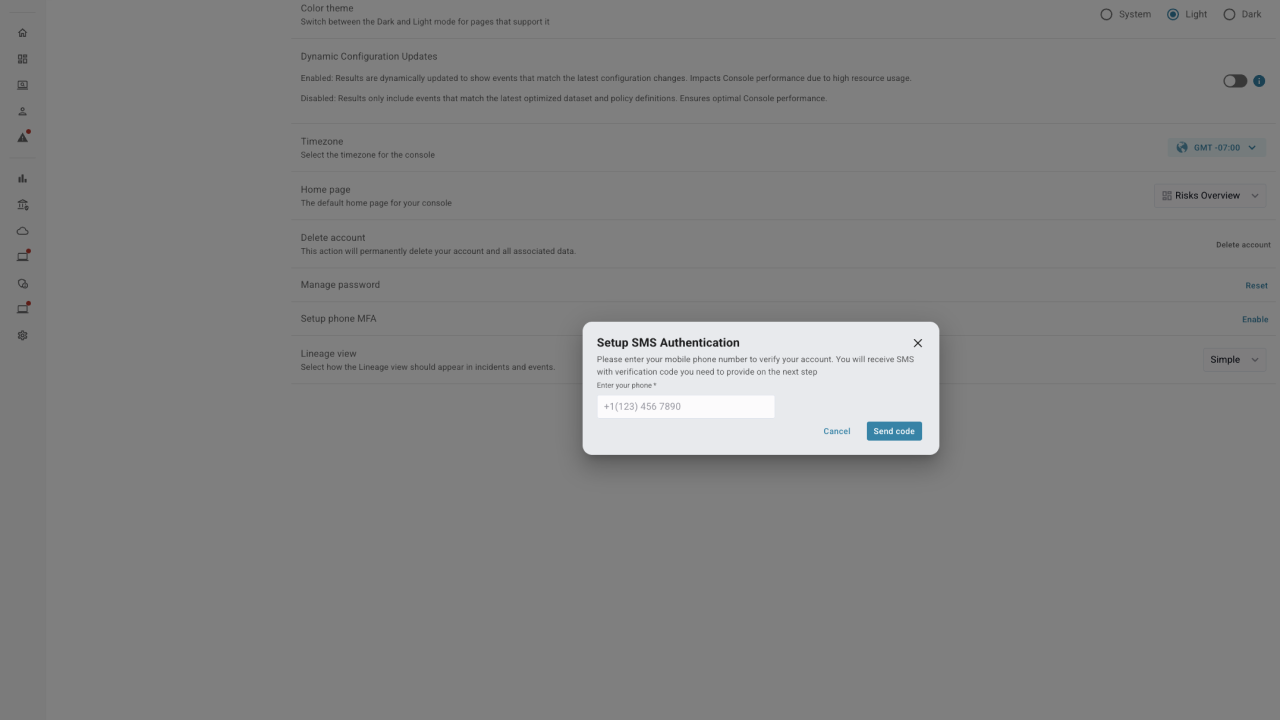
Enter the phone number, including the
+prefix and country code (for example,+18085551212), and click Send Code.Complete the CAPTCHA, enter the SMS verification code, and submit.
Cyberhaven emails the user to confirm that MFA is enabled.